


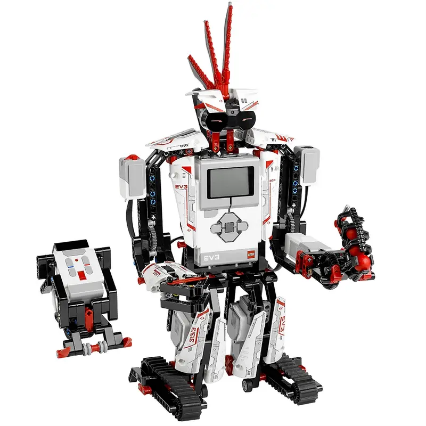
Getting Started with LEGO® MINDSTORMS® Education EV3
We believe that LEGO® MINDSTORMS® Education EV3 technology is for everyone. To show you how simple it is to get started, the EV3 software includes a guide to getting started that will help you familiarize yourself with the EV3 hardware and software, and have you controlling your very own EV3 Robot in no time. Scroll down for an overview of what’s included in each of the guide’s modules.
Setting Up (45 mins)

Installing the software
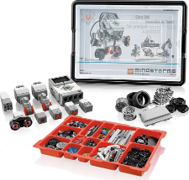
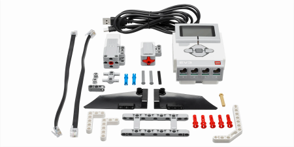
Unboxing the core set and sorting the bricks
Powering up your EV3 Brick
Labeling key components
Learning the Basics (45 mins)

Connecting your EV3 Brick
Building your first program
Experimenting with the Large Motor
Trying out the Touch Sensor
Getting creative with the Color Sensor
Creating & Controlling Your Robot (up to 90 mins)

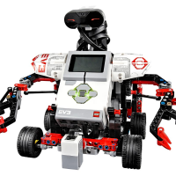
Building a Driving Base Robot
Moving your Robot in a straight line
Moving your Robot in a curve
Building an Object Detector
Making your Robot detect an object

Coding Canvas

Retired products
 LEGO MINDSTORMS EV3
 LEGO MINDSTORMS EV3
LEGO MINDSTORMS Education EV3 is an invention kit with motors and sensors you can use to build interactive robotic creations. Connecting it to Scratch expands the possibilities: build a robotic puppet and tell stories, make your own musical instruments and game controllers, or whatever else you can imagine.
Connecting EV3 to Scratch

Turn on your EV3 by holding down the center button.


Add the EV3 extension.
First time connecting your EV3?
After clicking the connect button in Scratch, you will need to pair it with your computer:

Accept the connection.

Accept the passcode.


Make sure your computer is paired with your EV3
Your computer needs to be paired with your EV3 before it can connect to Scratch. We try to do this automatically the first time you add the EV3 extension, but if it isn’t working you can try these bluetooth pairing instructions from LEGO.
On Windows, try un-pairing before connecting
If you have connected before and are unable to reconnect, try manually un-pairing your EV3 from your computer: open your Bluetooth settings, find your EV3, and remove it.
Only one copy of Scratch can connect with the EV3 at a time. If you have Scratch open in other browser tabs, close it and try again.
Make sure no other computer is connected to your EV3
Only one computer can be connected to an EV3 at a time. If you have another computer connected to your EV3, disconnect the EV3 or close Scratch on that computer and try again.
Try updating your EV3 firmware
We recommend updating to EV3 firmware version 1.10E or above. See firmware update instructions from LEGO.


Reviews
There are no reviews yet.